Best Docking Station for Linux: Docks That Just Work
The best docking station for Linux depends first on what your laptop's port supports. If you have Thunderbolt 4 or USB4, a Thunderbolt dock such as the CalDigit TS4 is a good choice. The kernel handles it, so there is no driver to install. For USB-C with DisplayPort, a driver-free dock such as the Dell WD19S is the easy answer. If your laptop only has USB-A, or its USB-C port cannot carry video, the Dell D6000S is an option. It uses DisplayLink, which means installing and maintaining a driver.
The recommendations here come from published sources, including ComputingForGeeks on USB-C docks and on Thunderbolt 4 docks, Linuxano's Linux docking station guide, the ArchWiki Docks page, the Synaptics DisplayLink Ubuntu driver page and Amazon UK listings. Most of the guides focus on the US market, so each recommended dock also has a live amazon.co.uk listing. We have not tested these docks ourselves.
Quick picks
- Best Thunderbolt 4 dock: CalDigit TS4 (18 ports, 2.5GbE, no driver)
- Best Thunderbolt dock for firmware updates on Linux: Dell WD22TB4 (firmware through fwupd, per Linuxano)
- Best driver-free USB-C dock: Dell WD19S (DisplayPort Alt Mode, nothing to install)
- Best DisplayLink dock: Dell D6000S (works from USB-A or USB-C)
We may earn a commission if you buy through links on this page. It never changes our verdicts. How we review.
CalDigit TS4 Thunderbolt 4 dock
Dell WD19S docking station bundle
Port-to-dock chooser
Check your laptop's port before choosing a dock. As ComputingForGeeks points out, what the USB-C port can actually do matters more than the specifications printed on the dock.
| Your laptop port | Dock type to buy | Screens to expect on Linux | Driver on Linux | The catch |
|---|---|---|---|---|
| USB-A only | DisplayLink (Dell D6000S) | Two 4K at 60Hz from USB-A, per ComputingForGeeks | evdi module plus DisplayLinkManager | Synaptics says the proprietary NVIDIA and AMD drivers do not work with DisplayLink |
| USB-C data only, no video | DisplayLink (Dell D6000S) | As above | evdi plus DisplayLinkManager | Rebuild or repackage evdi after kernel updates; sign it for Secure Boot |
| USB-C with DisplayPort Alt Mode | Driver-free MST dock (Dell WD19S) | Dell's tables show one screen fewer on Linux, because the laptop panel stays on | None, the kernel handles it | Your laptop's DisplayPort link sets the ceiling; an older link gives two 1080p screens |
| Thunderbolt 4 or USB4 | Thunderbolt dock (CalDigit TS4, Dell WD22TB4) | Dual 4K at 60Hz on a capable host | None; authorise with boltctl | One Linux guide notes the display count can be one lower than on Windows |
MST, DisplayLink or Thunderbolt: what matters
- MST (DisplayPort Alt Mode). The dock splits the DisplayPort signal coming from your GPU. Linux handles this through the kernel, without an extra driver. ComputingForGeeks shows that
modinfo -p i915 | grep -i mstreturns true by default. - DisplayLink. Video is compressed and sent over USB. ComputingForGeeks explains that the out-of-tree evdi module needs attention after kernel updates. It also needs signing when Secure Boot is enabled. Synaptics provides Ubuntu driver release 6.4, dated 24 September 2026, covering Ubuntu 20.04 to 26.10.
- Thunderbolt 4 and USB4. According to ComputingForGeeks, these docks work through the kernel's thunderbolt subsystem and
boltctl. No separate vendor driver is needed. - Firmware through fwupd. Linuxano documents a Linux firmware update route for the Dell WD22TB4 through LVFS. The CalDigit TS4 is different. Both Linuxano and ComputingForGeeks say it is not supported by LVFS and needs CalDigit's own updater.
- Screen count. Dell's guidance, cited by ComputingForGeeks and Linuxano, says Linux cannot turn off the laptop's built-in display. That means allowing for one fewer external screen than Dell's Windows tables show.
The picks
CalDigit TS4: best Thunderbolt 4 dock
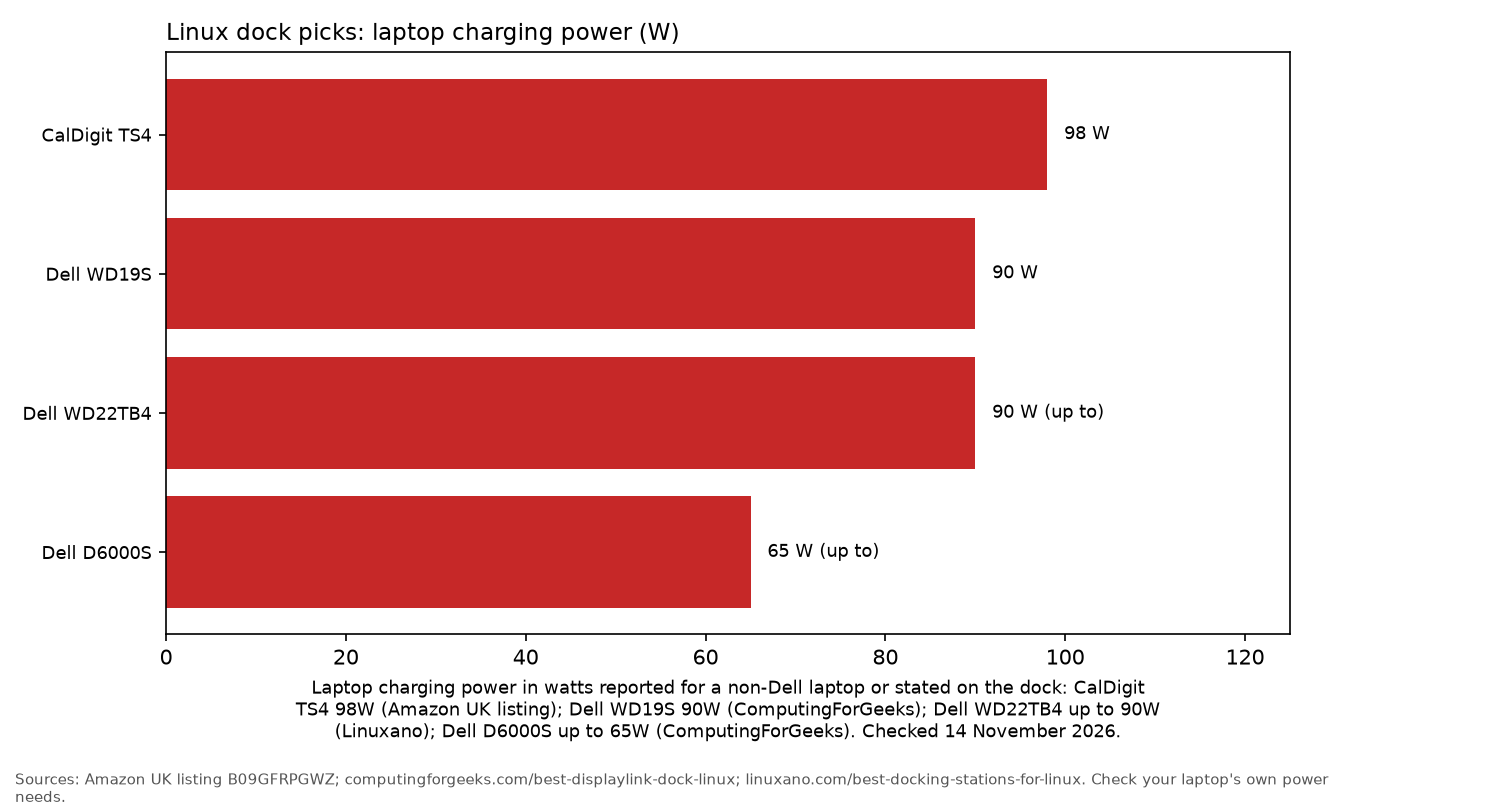
The CalDigit TS4 is an 18-port Thunderbolt 4 dock with plenty of connections for a busy desk. Its Amazon UK listing specifies three Thunderbolt 4 ports, eight 10Gb/s USB ports, DisplayPort 1.4, SD and microSD card readers, 2.5GbE and 98W charging for the laptop.
Linuxano reports that CalDigit supports Linux without requiring a driver. ComputingForGeeks also rates the TS4 as its best overall choice and says it authorises cleanly with boltctl.
Who it's for: anyone with a Thunderbolt 4 or USB4 laptop and a busy desk setup, particularly if a NAS is connected over 2.5GbE.
Who it isn't for: anyone who needs to update dock firmware directly through Linux. Both guides say its firmware is not available through LVFS. Linuxano also confirms there is no HDMI port.
Dell WD22TB4: best for firmware updates on Linux
The Dell WD22TB4 is a Thunderbolt 4 dock with Gigabit Ethernet and up to 90W laptop charging, according to Linuxano.
Its main advantage for Linux users is firmware support. Linuxano says updates are available through the Linux Vendor Firmware Service with fwupd 1.2.5 or later. You can install them using fwupdmgr or GNOME Software.
You will need to authorise the dock manually with boltctl the first time you connect it. The Amazon UK listing is a bundle that includes an HDMI cable and a DisplayPort cable, so check what is included before buying.
Who it's for: Dell and mixed laptop fleets, or anyone who wants to keep dock firmware updated from Linux.
Who it isn't for: anyone needing 2.5GbE. Linuxano lists Gigabit Ethernet only.
Dell WD19S: best driver-free USB-C dock
The Dell WD19S is ComputingForGeeks' best overall driver-free choice. It has two DisplayPort 1.4 outputs, HDMI 2.0, a video-capable USB-C port, Gigabit Ethernet and 90W charging for non-Dell laptops.
There is one connection limit to know about. HDMI and the rear USB-C port share a video stream, so you can only get a picture from one of them at a time.
Dell's manual explains the display limits on Linux. To run two sharp 1440p monitors, the laptop needs an HBR3 DisplayPort link with DSC. An older HBR2 connection supports two 1080p screens.
The Amazon UK listing is a bundle supplied with an HDMI cable and a DisplayPort cable.
Who it's for: A recent laptop with a USB-C port that supports DisplayPort video.
Who it isn't for: A laptop limited to an older DisplayPort 1.2 class connection. In that case, a DisplayLink dock can provide more pixels.
Dell D6000S: best DisplayLink dock
The Dell D6000S is the cheapest option in ComputingForGeeks' list. It also has particularly clear Linux documentation for a DisplayLink dock. Dell's guide specifies support for "Ubuntu OS 14.04.2 or greater".
With the DisplayLink driver installed, a USB-C laptop can run one 4K60 display from each DisplayPort output, plus a 4K30 display through HDMI. Connected over USB-A, the dock can still run two 4K60 monitors.
It also provides Gigabit Ethernet and up to 65W charging through USB-C.
There is a useful fallback if the DisplayLink driver is not working. On a USB-C host, the HDMI output can use DisplayPort Alt Mode at 4K30. That leaves one monitor usable while the driver issue is being resolved.
The Amazon UK listing is light on specifications. It is sometimes sold via Amazon Global Store, so check import charges at checkout.
Who it's for: Laptops with USB-A only, or USB-C ports that cannot carry video.
Who it isn't for: anyone running proprietary NVIDIA or AMD drivers. It is also a poor fit if a kernel update disrupting the second monitor would cause problems.
Docks we left out
- Amazon Basics Thunderbolt 4 dock. Its Amazon UK listing explicitly says it is not compatible with Linux, so it has no buying button here.
- Lenovo ThinkPad Universal Thunderbolt 4 dock. ComputingForGeeks recommends it for LVFS firmware updates. However, a dependable amazon.co.uk listing could not be found, so there is no button.
- Plugable UD-ULTC4K. ComputingForGeeks rates this three-screen hybrid, but Plugable does not list Linux support. There was also no matching UK listing.
- Budget hubs. The Anker and UGREEN listings mention Windows, macOS or ChromeOS rather than Linux, so they have been excluded.
Quick check once it is plugged in
- Thunderbolt or USB4: Start with
boltctl listto see the connected devices. Then runboltctl enroll --policy auto <uuid>to authorise the dock permanently, as described by ComputingForGeeks. To check for firmware updates, usefwupdmgr refresh && fwupdmgr get-updates. - DisplayLink: On Ubuntu, Synaptics provides a repository package. Add it with
sudo apt install ./synaptics-repository-keyring.deb, followed bysudo apt updateandsudo apt install displaylink-driver. - Prepare evdi for kernel updates: ComputingForGeeks recommends installing
evdi-dkmsand the kernel headers first when running the generic Ubuntu kernel. This allows evdi to rebuild for each kernel:sudo apt install -y linux-headers-generic linux-headers-$(uname -r) evdi-dkms sudo apt install -y displaylink-driver
- Check that DisplayLink is running: Use
dkms statusto inspect the module andsystemctl status displaylink-driverto check the service. - If Secure Boot is enabled: Expect a prompt to enrol a signing key at the next boot. ComputingForGeeks advises being at the keyboard so you can complete that step.
For more Linux hardware recommendations, see the Linux hub, USB Wi-Fi adapters, Bluetooth adapters, printers and mini PCs for a home server.
FAQ
Do docking stations work with Linux?
Yes. The important part is choosing a dock that matches your laptop's port. Thunderbolt 4 and driver-free USB-C docks work without installing anything extra. DisplayLink docks require a driver.
Does DisplayLink work on Ubuntu?
Yes. Synaptics provides DisplayLink driver release 6.4 for Ubuntu 20.04 through 26.10. However, Synaptics says DisplayLink does not work with proprietary NVIDIA or AMD drivers.
MST or DisplayLink for Linux?
ComputingForGeeks recommends choosing MST first when your USB-C port supports DisplayPort. DisplayLink makes more sense when the port cannot output video or when you need additional screens.
Why does my dock show only one external monitor on Linux?
According to Dell, Linux cannot switch off the laptop's built-in panel, leaving one fewer external display available than its tables suggest. With an MST dock, the laptop's DisplayPort link can also limit how many monitors work.
Do Thunderbolt docks work on Linux?
Yes. Linux supports them through the kernel's thunderbolt subsystem. You just need to authorise the dock using boltctl when connecting it for the first time.
As an Amazon Associate I earn from qualifying purchases.